How to Control TgeBrowser Fingerprint Browser with LanYin RPA for Automation
Introduction
TgeBrowser provides API interfaces to launch browsers and can be integrated with LanYin RPA for automated control.
Use Cases: Batch operations, data collection, automated testing
LanYin Account: Register Now
Invitation Code (10% off): CE91E6A32EE9DD972B8C00
Quick Start
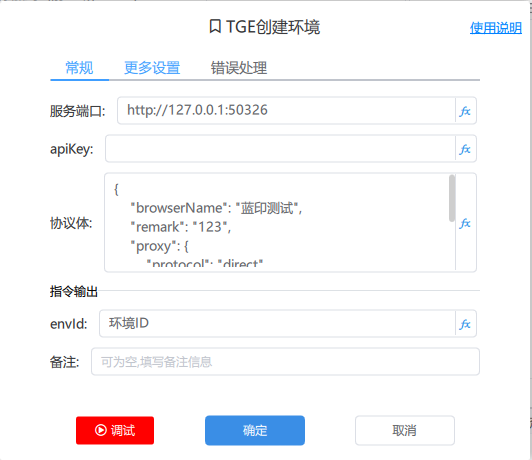
Create Environment
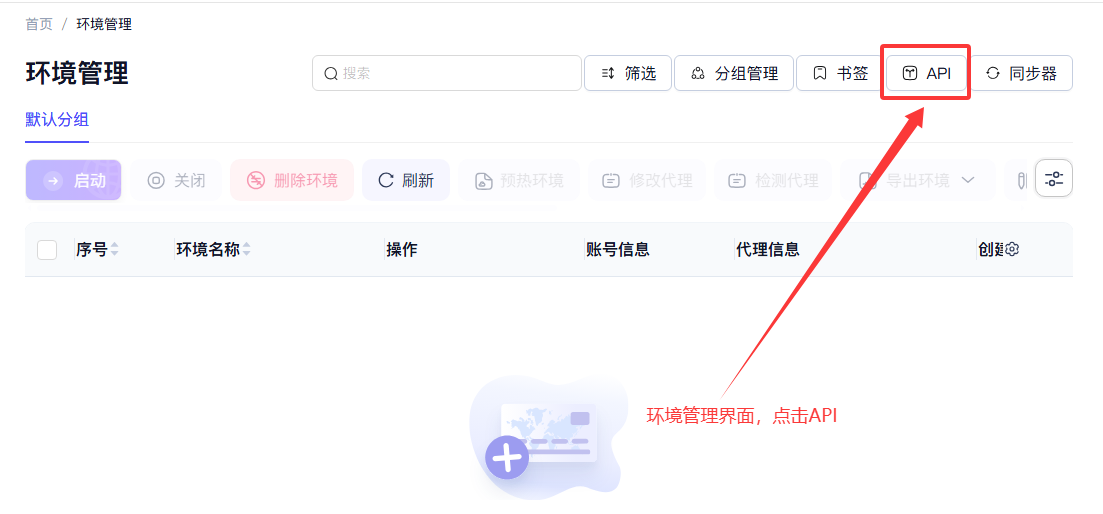
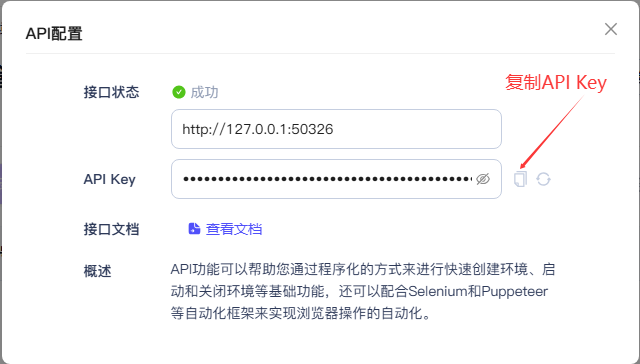
Get apiKey: Click "Environment Management" on the left sidebar of the TGE client, then click "API" in the main window on the right, and finally click the copy button for the API Key in the popup dialog.
Reference link for creating environment "protocol body": https://docs.tgebrowser.com/api.html#请求示例-1
After successful execution, an "Environment ID" variable will be returned. All subsequent operations on the environment depend on this "Environment ID".
Start Environment
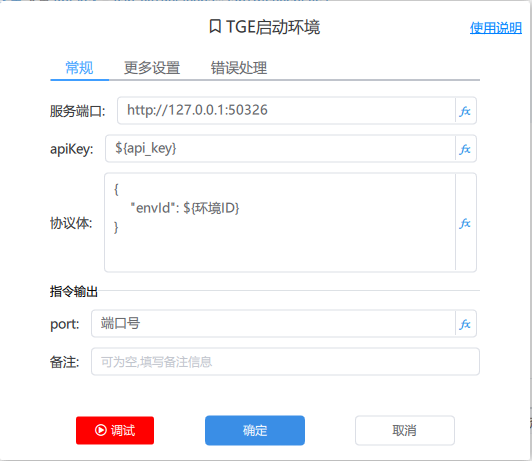
Fill in the corresponding "Environment ID" variable in the protocol body, and execute the step to return the "Port Number". The port number is the main way for LanYin RPA to connect to the launched browser window.
Take Over Browser Window
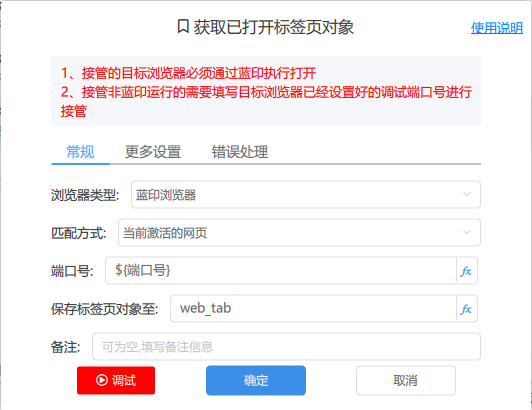
Fill in the corresponding "Port Number" variable, and execute the step to obtain a tab object named "web_tab". With the tab object, LanYin RPA can perform operations such as "click", "input", and "upload" on the browser web page.
Stop Environment
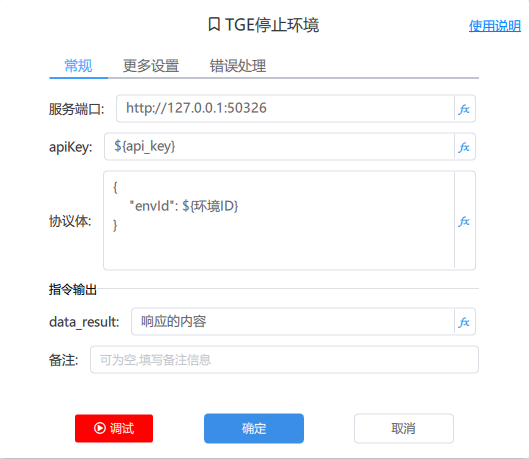
Fill in the corresponding "Environment ID" variable in the protocol body, and execute the step to close the opened browser window.
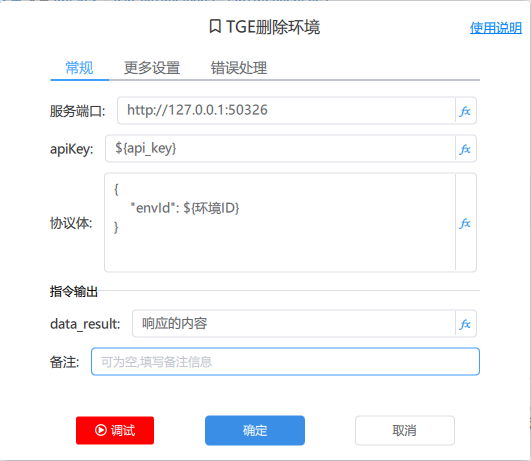
Delete Environment
Fill in the corresponding "Environment ID" variable in the protocol body, and execute the step to delete the browser environment. Note: Stop the environment before deleting it.